
A tasting room and taproom POS built for craft producers
QUALO’s point of sale is built for how a tasting room or taproom actually runs. Pour, sell, ring in members and hold tabs on the same screen. Every sale updates your inventory the moment it happens, across every location, and lands on the same customer record your club and online shop use.
Fast checkout, your way
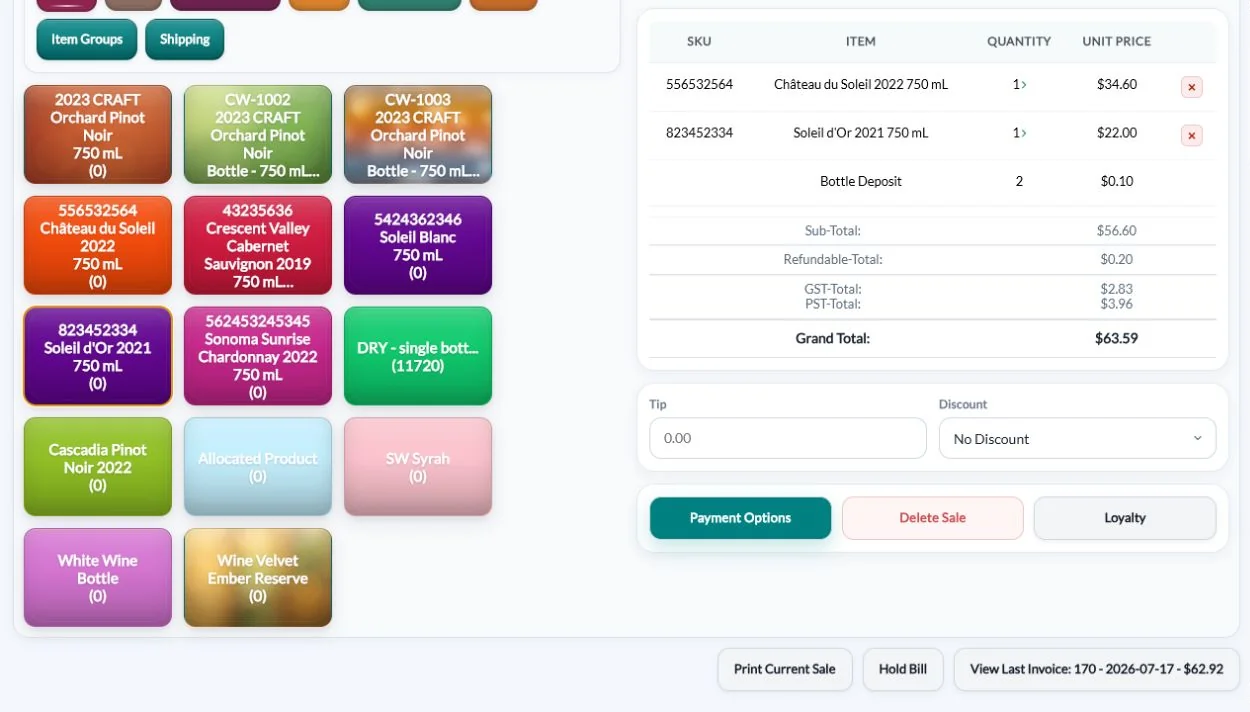
Products are grouped into buttons by type, with optional images, in the order your staff prefer. Scan barcodes, edit lines on the fly, and let QUALO add bottle and can deposits automatically. The product groups stay visible down the side, the first one opens on its own, and the sale builds on the right with the total always in view.
Gift packs and mixed cases can be set up as one button, items like cheese can be sold by weight, and staff can take a pre-order when stock hasn’t arrived yet. The tasting room screen is kept separate from wholesale order entry, and it resizes to work on smaller handheld devices for busy weekends.
Give any button its own POS name and colour, and see every button side by side on the POS Color Layout page. Tap a line in the sale to open Unit Details, where staff can change the quantity or price, or apply a quick discount from 5% to 100%. A discount on the whole sale is one tap away too, and it switches off when a line already has contract or loyalty pricing, so discounts never stack.
Know who you’re serving
Look up a guest in seconds and see their history, membership and saved cards, or add a new customer without leaving the sale. Member pricing, customer-type pricing and contract pricing apply automatically, and receipts show the original price next to the member price so guests see what they saved.
Start typing a name or licence number and the list narrows as you go. The customer summary sits beside the search, a red marker flags any unpaid invoices, and View Customer opens the full profile in a new tab. If a guest has more than one card on file, the cards can be ranked so staff charge the right one. Contract prices can be set for a single item, a product group or a bundle, so a standing discount is applied without anyone having to remember it.
Notes you add under Instructions (To Show on POS Only) on a customer’s record appear on the sale, so staff see them every time. The customer summary also shows the customer type, licence number, preferred payment and delivery method, and ship-to address. View Last Invoice shows the guest’s most recent invoice number, date and total and opens it in a new tab, and if a guest has more than one address, staff pick the right one with Shipping Address.
Every way your guests pay
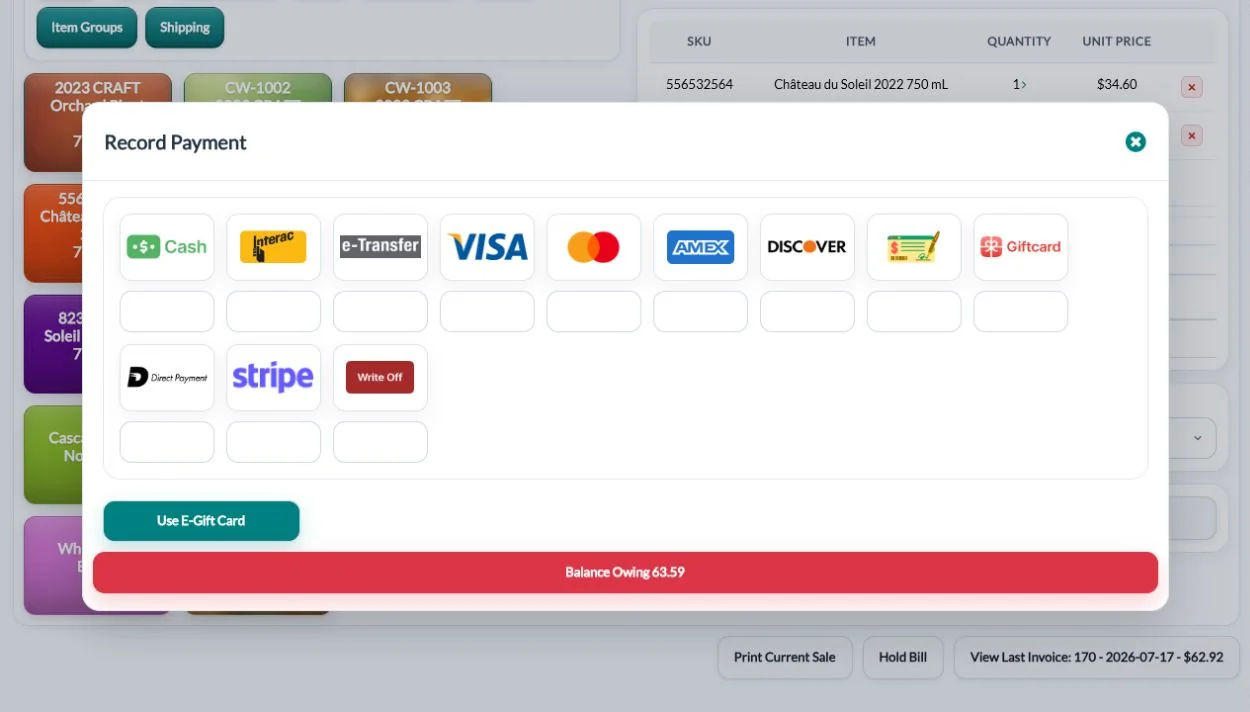
Send card payments straight to integrated Elavon or Moneris terminals. Accept cash with change due, Interac, cheque, Apple Pay, Google Pay and more, and split a bill across several payment types. Guests can add tips, and you can report tips by staff member.
You choose which payment types appear, so staff only see the ones you accept. For cash, staff enter what the guest handed over and QUALO shows the change due while recording only the amount owed. For a split, enter the first amount and QUALO fills in what’s left for the next method. Saved cards appear as quick links for the selected guest, and the screen guards against a second click while a payment is processing.
Set up each card terminal in POS Device with a name and its processor, then staff choose it on the sale and tap Send to Device. A tip added on the terminal comes back into QUALO with the total, and the device name and authorization code are saved with the payment for easy matching later. Beyond cards and cash, you can also turn on e-transfer, PayPal, Venmo, WeChat Pay and direct deposit.
Tabs, gift cards and loyalty
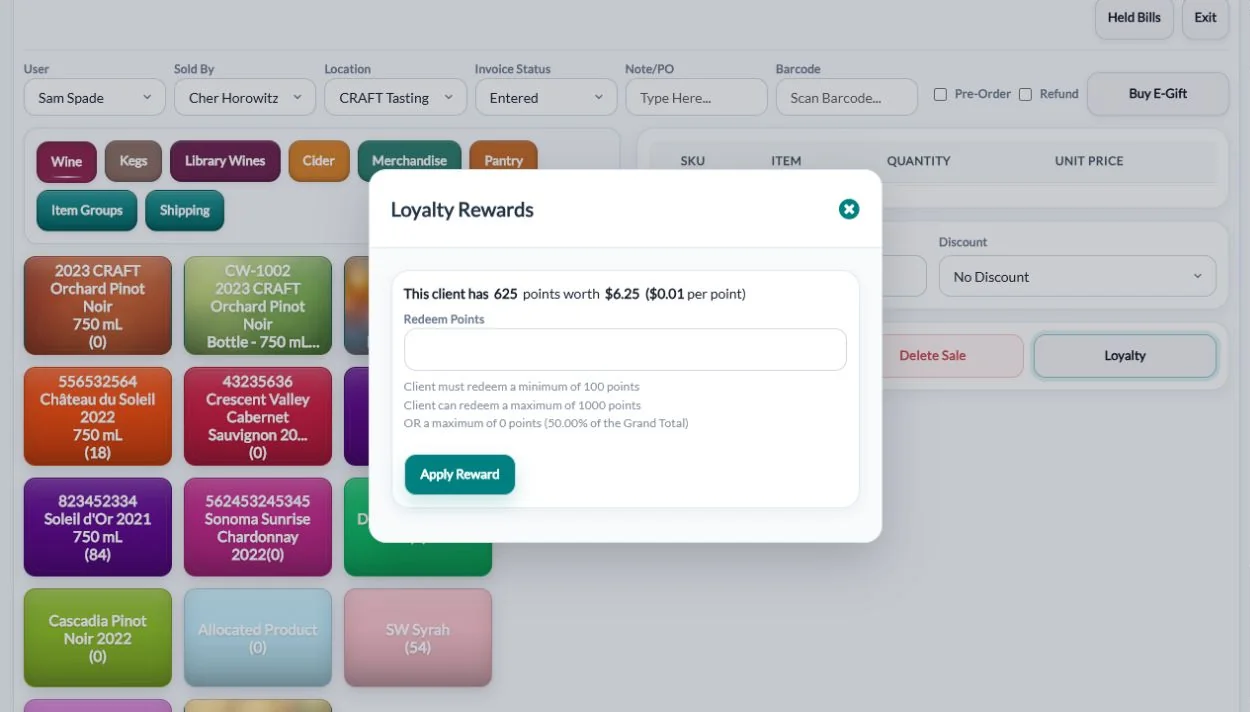
Hold a bill for a table and pick it up later with the customer, notes and table kept. Sell and redeem electronic gift cards in person or online. Members earn and redeem loyalty points with the rules you set.
Give each held bill a name such as Table 4 or Patio Group, and anyone on shift can find it, add another round and hold it again. Electronic gift cards are emailed to the recipient, the buyer gets a receipt, and staff check the balance before applying it. For loyalty, the POS shows the guest’s points and their dollar value, and checks your minimum, maximum and percentage limits before a reward goes on the bill. A refund takes back the points earned on the original sale.
Loyalty can also run in tiers. A tier can be limited to certain customer types and require a minimum spend over a period such as the last 12 months. Each tier sets its own earn rate and point value, and whether points are earned and redeemed in store, online or both. Points can expire a set number of days after they’re earned or on a fixed date such as December 31, and a tier can give an automatic discount on chosen product divisions.
Reservations flow into the sale
Guests who booked online are checked in from the reservation, rung through the POS, and checked out with their table released automatically.
From Reservation Search, staff check the party in, assign an open table and open the POS with the guest already attached. The customer is locked to the reservation, so nobody rings the visit up under the wrong name. Hold the bill between rounds and the reservation and table stay with it. When the sale is finalized, QUALO marks the reservation Checked Out and frees the table for the next booking. Walk-ins work the same way: create the reservation, pick a table and check the guests in, all in one step.
If a party moves from the bar to the patio, choose the new reservation location when you hold the bill, and the reservation moves with them. The Reservation Calendar shows bookings and open times through the day. Afterwards, the Reservation Report lists completed or cancelled bookings for any date range, and Reservation Revenue shows each visit’s experience, guest count and revenue by staff member, along with their commission.
Close the day in minutes
Refund an item or a whole invoice in one step, reprint or email receipts, or send a gift receipt with no prices. At closing, the Cash Out Report breaks down payments and tips by type and exports to CSV, and the End of Day dashboard shows the day at a glance.
For a return, staff tick Refund and the items go in as negative quantities, with the refund invoice numbered to match the original. Set the Cash Out Report to the exact shift, filter by staff member, and compare cash, terminal and gift card totals with your drawer and processor reports. Any invoice on the report opens with one click when a number doesn’t match. The End of Day dashboard breaks sales down by location, customer type, staff member, product group and payment type.
On the Cash Out Report, Hide $0 Items drops empty payment lines, and turning off Show Details gives you just the totals to print and keep with the drawer. The End of Day dashboard covers any date range and filters by company, staff member, customer type or inventory location. Its overview lists refunds, tips, deposits, discounts and amounts still outstanding, and the product division table shows quantities and case totals, ready to print or export to Excel.
Canadian from the ground up
GST and PST are shown on every sale, deposits follow your customer types, and Interac is built in. Sales sync to QuickBooks Online.
Taxes are set by product group in tax zones, so each product picks up the right mix of taxes for your province. Deposits can be turned off for customer types that shouldn’t pay them. When a tax rate changes, you can swap it across every item in one step instead of editing products one at a time. In QuickBooks Online you choose which account receives payments and which receives tips, and returns go across as credit memos.
Built for your industry: Winery Software · Cidery Software · Brewery Software
Each tax in QUALO carries an accounting reference that links it to the matching QuickBooks tax, and payment types such as Interac and e-transfer map across the same way. Bulk Link Customers and Items matches your existing QuickBooks customers and items by name in one step, and skips any name that could match more than one record. The End of Day dashboard shows a separate total for each tax, and the Tax Report filters by invoice date, company, category and staff member.
Frequently asked questions
Which card terminals work with QUALO?
Elavon and Moneris terminals connect directly to the POS.
Can I run more than one tasting room or taproom?
Yes. Each user has a default stock location, and every location’s inventory updates in real time.
Does the POS work on a tablet?
Yes. QUALO runs in the browser, and the tasting room screen is designed for smaller handheld devices.
Can staff hold a tab?
Yes. Hold Bill keeps the customer, notes and table until you’re ready to settle.
Do I pay for each staff member?
No. A QUALO licence covers unlimited users.
Can I choose which payment types staff see?
Yes. In Master Preferences you pick which payment options appear on the POS and on invoices, and hide the rest.
How do refunds work?
Tick Refund on the POS and add the returned items, or refund a whole invoice with one button from the invoice. Loyalty points earned on the sale are taken back.