
Payments for wineries, cideries and breweries
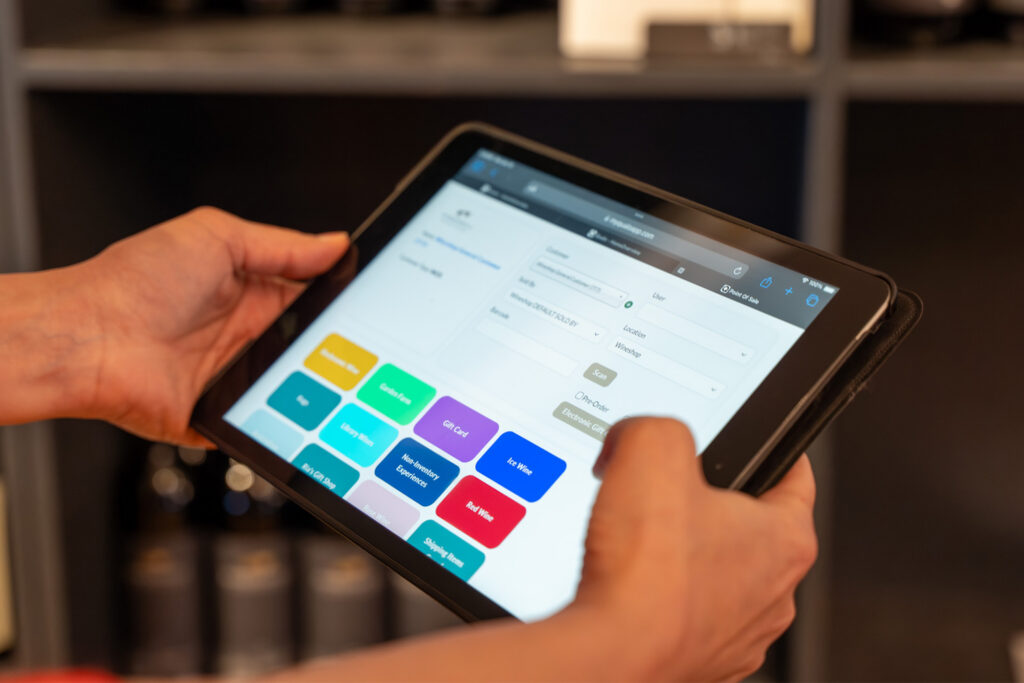

Whether a guest taps a card at the tasting bar, a member’s club order goes through, or a restaurant account pays last month’s invoice, QUALO records every payment against the invoice it pays. Your receipts, cash-out, reports and bookkeeping all work from the same numbers.
QUALO is partnered with Elavon, whose services let businesses of every size take payments in person, online and on the go, and QUALO also works with Moneris. We’ve partnered with local vendors too, to provide in-province support for payment processing, so QUALO customers always have the best credit card rates posted for each month.
Card terminals that talk to your POS
Elavon and Moneris terminals connect straight to the QUALO point of sale. You set up each terminal once under POS Devices with its processor, network address and port. After that, staff choose the terminal on the payment screen and press Send to Device. QUALO sends the amount owing to the terminal and waits while the guest pays.
Once the terminal approves the payment, QUALO creates the invoice and saves the payment with the device name, card type, authorization code and amounts. If the guest adds a tip on the terminal, the tip comes back with the approval and is saved on the invoice. If the card is declined or the terminal times out, staff see a message and no invoice is created, so the sale stays open and they can try another way to pay.
Every way your guests pay
QUALO also records the other ways people pay you, including cash with change due, Interac, cheque, e-Transfer, direct deposit, Apple Pay, Google Pay, PayPal, paper gift cards and electronic gift cards. You decide which payment types appear, so staff only see the ones you accept.
Splitting a bill is simple. Put part of the bill on the terminal and the rest in cash or another type, and QUALO records each amount as its own payment on the same invoice. Saved cards show up as quick links for the selected customer, and the screen blocks a second click while a payment is processing.
Online shop and reservations
Your web shop and online reservation checkout charge cards through Elavon (Converge) or Moneris. Returning customers can pay with a saved card, and a new card entered at checkout is saved to their account for next time. The order only becomes an invoice after the payment is approved. Customers can also add or replace their card on file in their own account, so your team doesn’t need to take card details over the phone.
Saved cards for repeat customers
When you save a card, QUALO registers it with your processor (a Converge token or the Moneris Vault), and later charges use the reference your processor sends back. Staff see a masked card description and the expiry date. If a customer has more than one card, you can rank them so the right one is charged first.
You control who can use saved cards. Tick Deny Access To Stored Payment Methods in a staff member’s security settings and they can’t charge stored cards anywhere in QUALO. Each new card is logged in the customer’s notes along with who added it.
Club runs and wholesale invoices
To process a club release, one action converts the reviewed orders to invoices, charges each member’s top-ranked card and takes the stock out of inventory. For wholesale, take payment when the order is entered or choose Submit & Pay Later. Later, open the Outstanding Invoice Report, tick the invoices for customers with a card on file and press Send To Payment Processor. Approved charges are recorded on each invoice, declines are logged with the processor’s message, and you can choose to email the customer when a charge succeeds or is declined.
When a card doesn’t go through
QUALO gives you three follow-up lists. Credit Card Declined shows recent declines with the processor’s message, Credit Card Expiry shows cards expiring up to a month you choose and whether the customer has another valid card, and Credit Card Missing shows customers who need a card on file. Select the customers you want and send billing emails in one step, so they can update their card through their account.
Refunds, reports and QuickBooks Online
The Refund button copies an invoice as a refund. A terminal refund goes back through Send to Device, and a refund to a saved card is sent to the processor as a return against the original charge. At closing, the Cash Out Report breaks down payments and tips by type and staff member and exports to CSV, and the End of Day dashboard shows sales by payment type. Payment Search finds any payment by invoice, payment type, reference or cheque number, or date, and the Reconciliation screen helps you match QUALO against your processor and bank.
Payments also sync to QuickBooks Online. Each payment type, such as cash, cheque, card or e-Transfer, is matched to an account in QuickBooks, and you choose which account receives tips.
Payments FAQs
Which payment processors work with QUALO?
Elavon and Moneris. Both work with integrated terminals at the POS and for online and saved-card payments.
Can guests tip on the terminal?
Yes. The tip the guest enters on the terminal comes back to QUALO with the approval, is saved on the invoice and appears on the Cash Out Report.
Can I split a bill across payment types?
Yes. Combine the terminal, cash, Interac, gift cards and other types on one sale, and each one is recorded on the same invoice.
What happens when a club member’s card is declined?
The decline and the processor’s message are recorded on the invoice, and the customer appears on the Credit Card Declined list. From there you can send a billing email asking them to update their card.
Does QUALO sync payments to QuickBooks?
Yes, with QuickBooks Online. You map each payment type to a QuickBooks account and choose where tips go.
Book a demo to see payments in QUALO, or read more about the POS, clubs and online shop.