
Inventory you can trust, at every location
Every bottle, can or keg sold in person, online, to a club member or on a wholesale invoice comes out of the same inventory, the moment it happens. No end-of-day reconciling and no guessing what’s in the warehouse. Staff, sales reps and managers all work from the same numbers, with a full history behind every change.
See everything, everywhere
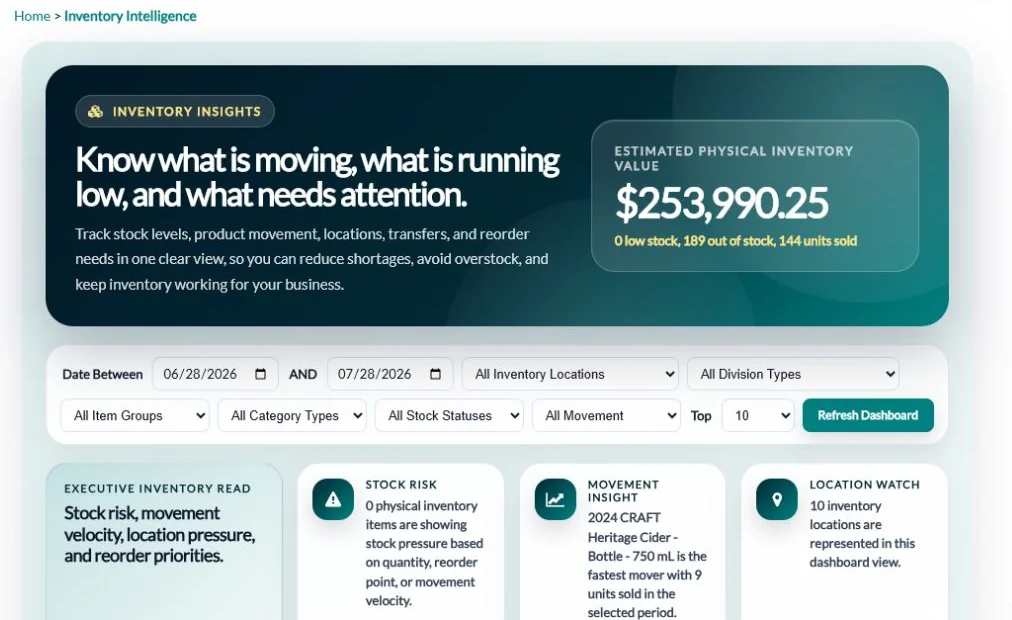
View stock by item, size and location, with physical, allocated and in-transit quantities side by side. Add as many locations as you run: production, tasting room or taproom, off-site storage and pickup points.
Click any quantity on the inventory list to open its history. When an item has a case size, the POS and invoice screens show stock in cases as well. A new location starts with every item active, so it’s ready to sell from right away. Each user can have a default location, and staff only see the locations they have access to, which keeps their lists short.
On the Inventory List you can pick one location or several at once, narrow the list by division, and search by SKU or name. Tick Show Subtotals By SKU to add a total line for each SKU across the locations you chose, in units and in cases. A red dot flags anything at or below its reorder point, you can mark an item inactive at one location right from the list, and the whole view exports to CSV.
Move stock without losing track
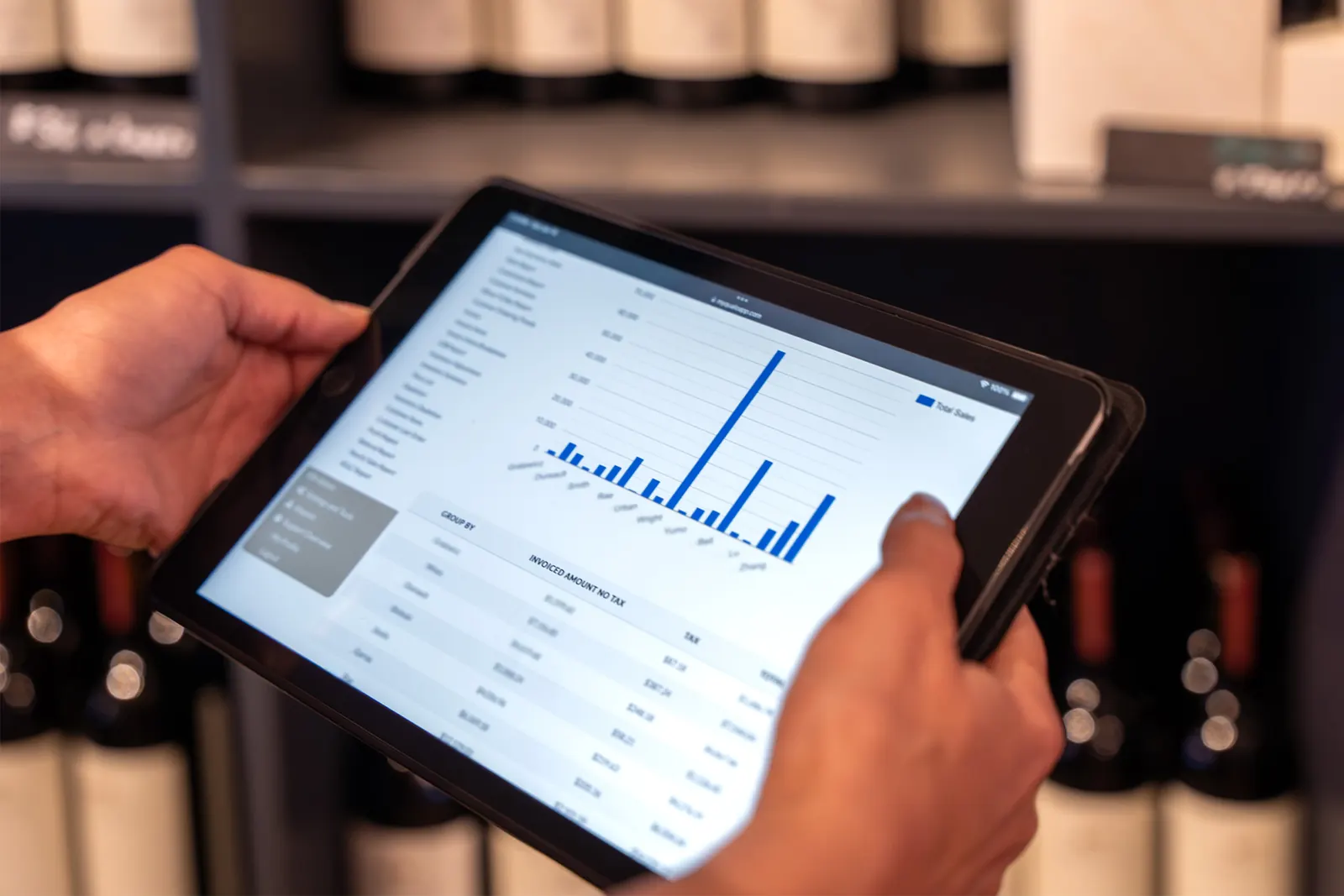
Transfer between locations with in-transit tracking. Packing slips print or email with barcodes and total weight, and the receiving location confirms what arrived. Transfers can be edited or back-dated when paperwork runs behind.
One transfer can pull from more than one source location, and the note and reference are entered once for the whole transfer. Items can be added or removed while it’s still open. Packing slip emails go to the shipping and receiving sites from inside QUALO and are saved in Email History. While stock is on the road, it shows as in transit on the inventory list, the reorder list and reports, so it isn’t counted twice or lost. Packaging supplies can be transferred the same way.
As you enter quantities on Transfer Inventory, a Transfer Summary lists each item and amount, so you can check the load before you click Save and Finish. Items sold by weight move with both a quantity and a weight. If a location doesn’t need a receiving step, turn on Auto Complete Transfer and stock lands there as soon as you save. Lines voided with Edit Transfer are written to Inventory History with the user’s name.
Counts and adjustments with a full history
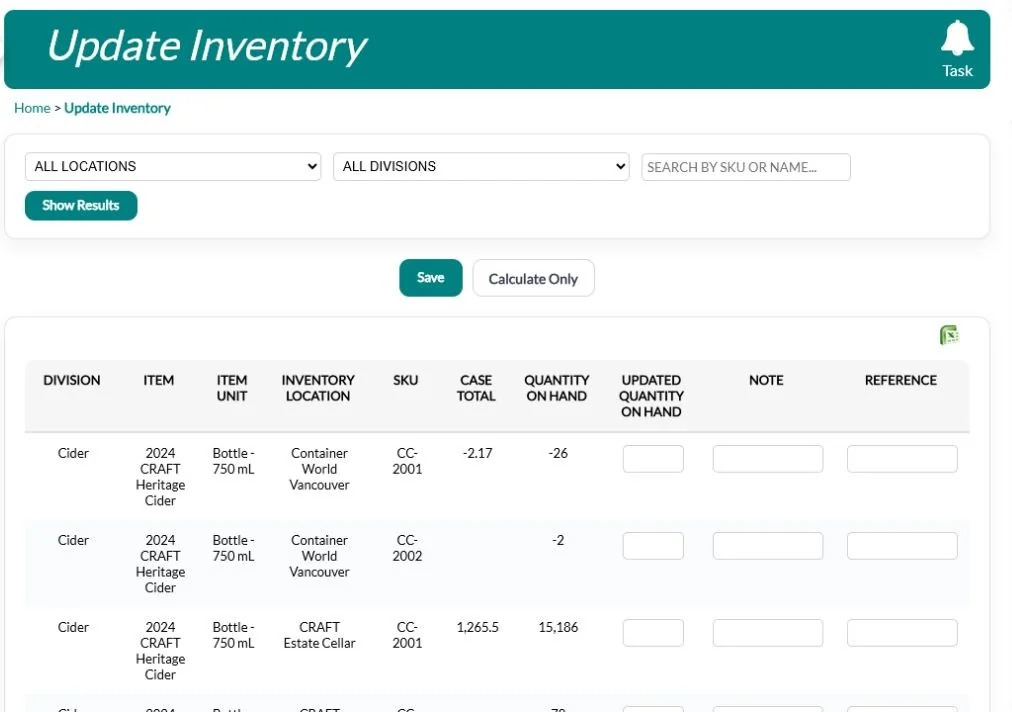
Receive stock, make adjustments and run physical counts with variances shown. Every change is recorded, so you can see who changed what and when.
For a count, enter what’s on the shelf and use Calculate Only to see the difference before you save. Receipts and adjustments can be dated in the past when paperwork arrives late, but never in the future. Inventory History lists every sale, receipt, transfer, count and adjustment by item and location, with the date, the user and a reference, and links to the packing slip behind a transfer. You can leave imported history out when you only want to see entries made in QUALO.
Receive / Adjust Inventory and Update Inventory both open as lists you can filter by location and division or search by SKU or name, so a whole delivery or a full count goes in one pass. Each line has its own note and reference. Calculate Only shows the difference on every line plus a net total for the count, and when you save, the history entry reads like “was 48 updated to 46”, with your note and your name.
Never run out of your best sellers
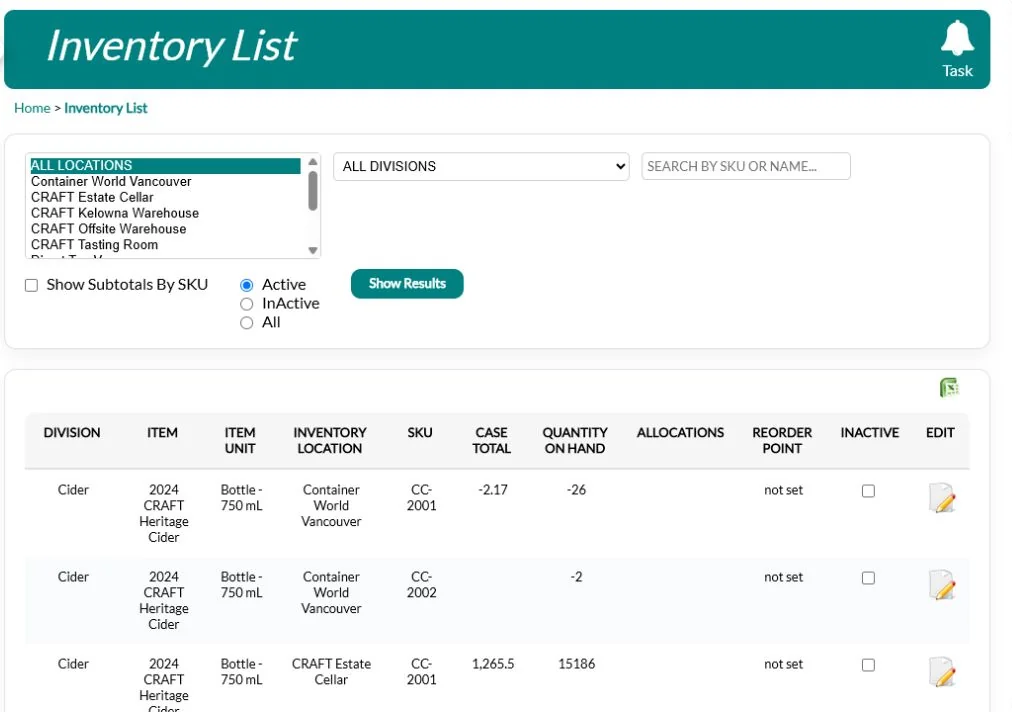
Set a reorder point for each item at each location. When in-person, online, club or invoice sales drop stock below it, QUALO emails your team.
Receipts, adjustments and counts trigger the same alert, not just sales. The Reorder Point List shows everything at or below its level, including stock already on its way from another location, so you don’t reorder what’s in transit. Setting levels by location matters because a tasting room or taproom shelf needs far less on hand than your main storage. Online, you can stop selling an item automatically when it reaches zero.
Alerts are set per location: turn on Email When Reorder Point Is Reached and enter a notification email, so the alert goes to whoever restocks that site. The email names the item, unit, SKU and location, with the current quantity and the reorder point. The ReOrder Point List also shows each item’s cost, its supplier and a standard order quantity you set for that location, so you know who to call and how much to order.
Allocations for your sales team
Allocate inventory from the company to individual sales reps and on to customers. Reps see their own stock in a My Inventory view.
A company such as a sales agency can receive an allocation and divide it among its own reps, and reps can set stock aside for their own accounts. When a sale uses allocated stock, QUALO takes it from the customer allocation first, then the rep, then the company. Combined allocations can’t add up to more than you have on hand, and you get a warning when a transfer or update would leave more allocated than available. Allocation History records every change.
The Allocations screen puts every allocation in one list that you can filter to customer, company or staff allocations, group by staff member, location or item, and export to CSV. Allocation History shows the previous amount, the change and the new total for each entry, with who made it and a searchable note and reference. When you transfer stock that’s allocated to a company, QUALO offers to move that allocation to the new location once the transfer is complete.
Built for the details
Each item can have SKUs, barcodes, case multiples and pallet configurations, plus alternate Alberta (AGLC) SKUs. Bring existing items and starting quantities across with a bulk import, and track supplies such as glass, cans, closures and labels with their own reorder points and purchase orders.
Copy an existing item to set up a new release in a few clicks. Items can carry shipping weight and volume, and products like cheese can be tracked by weight. Supplies have their own locations, transfers, packing slips, lot numbers and valuation report, so packaging is counted as carefully as finished stock.
Each item unit has room for the details buyers ask about, such as vintage, varietal and alcohol percentage, plus length, width and height for shipping. Attach an image and a PDF to the item, and record its supplier, unit cost and accounting reference. Item groups put several items on one POS button with its own colour and image, and on each location, POS Quantity Multiple Limit sets which pack sizes that location sells, such as singles only in the tasting room.
Third-party warehouses
QUALO connects with third-party warehouses including CartonCloud and Container World, so stock held off-site is part of the same picture.
Each warehouse is set up as an inventory location, so its stock shows in the same lists and reports as your own sites. Orders can be sent to the warehouse from QUALO, and its reply is recorded on the invoice, including whether the order was accepted or rejected and why. If a warehouse only fills part of an order, you can mark it with your own status so the team knows to review it. Transfer packing slips to a warehouse can carry your alternate AGLC SKUs.
To link a warehouse, choose it in the Warehouse System setting on the location, and only that system’s fields appear. Camelot is offered there too, alongside CartonCloud and Container World, and each SKU can carry the warehouse’s own product code. In Master Preferences you choose which invoice status applies when an order is sent to the warehouse or rejected, and when CartonCloud or Container World reports an order as shipped, QUALO updates the invoice status and notes it in the invoice log.
Reports your accountant will like
Inventory Summary, Adjustment, Depletion and Valuation reports show what moved, where, and what it’s worth.
Inventory Summary shows stock at the start and end of any date range, with sales, receipts, counts and transfers in and out in between. Click an item to open the Adjustment Report for the detail. Inventory Depletion shows what you had on hand at past month ends. Valuation shows on-hand value at unit cost and can hide items with no stock, and the Profit Report compares unit cost with your selling price. Reports export to CSV.
Built for your industry: Winery Software · Cidery Software · Brewery Software
The Depletion Report shows cases sold month by month for each item, with the average monthly depletion and how many months your current stock will last. You can run Inventory Valuation for a past date, using quantities as they stood at the end of that day. Pick a customer type to add unit price and extended price next to extended cost, and you’ll see what your stock is worth at that price.
Frequently asked questions
Does inventory update when I sell in person?
Yes. POS, online, club and wholesale sales all draw from the same live inventory.
Can I track stock at a third-party warehouse?
Yes. Off-site locations are tracked like any other, and QUALO integrates with CartonCloud and Container World.
Can I import my current inventory?
Yes, with a bulk import of items and starting quantities.
Will QUALO warn me before I run out?
Yes. Reorder points trigger email alerts for each location.
Can I stop staff selling stock we don’t have?
Yes. You can block sales of unavailable stock, or take pre-orders.
Can I see who changed a quantity?
Yes. Inventory History records every sale, receipt, transfer, count and adjustment with the date, the user and a reference.
Can I track packaging supplies too?
Yes. Glass, cans, closures, labels and other supplies have their own locations, reorder points, transfers and purchase orders.